
Loading the Equipment to be inspected to your device ready for inspection
Step 1. Login to the Mobile App
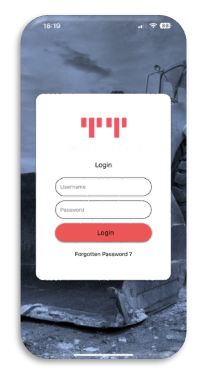
Use your previously provide Login User-name and Password for the Web to login to the Mobile application
Step 2. Select Undercarriage from the Main Menu
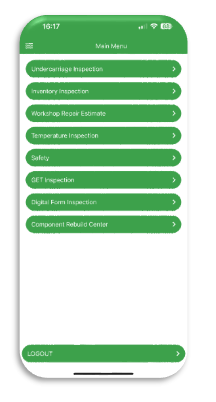
The mobile application will open to the main Menu. Select Undercarriage.
Step 3. Load the Equipment to be inspected

To load equipment for an undercarriage inspection, click on the ‘Load Equipment’ button.
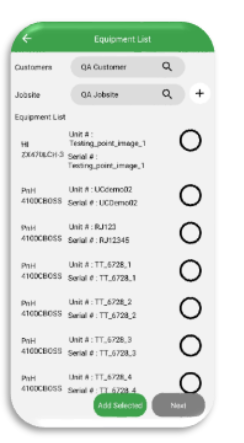
After clicking on ‘Load equipment’ will open the Equipment List page where you use the ‘Customer” and ”Jobsite” to search for your equipment. The “+” when clicked will also open a model selection to assist with filtering the available machines if necessary. Once the equipment is found, select and then hit the ‘add selected button’.
Note, you can add multiple equipment to inspect
Step 4. Start inspection of the Equipment
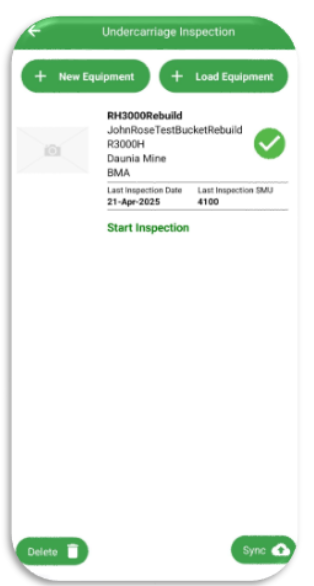
The equipment will appear on the ’Undercarriage inspection’ page, click on the equipment serial or unit number to commence the inspection.